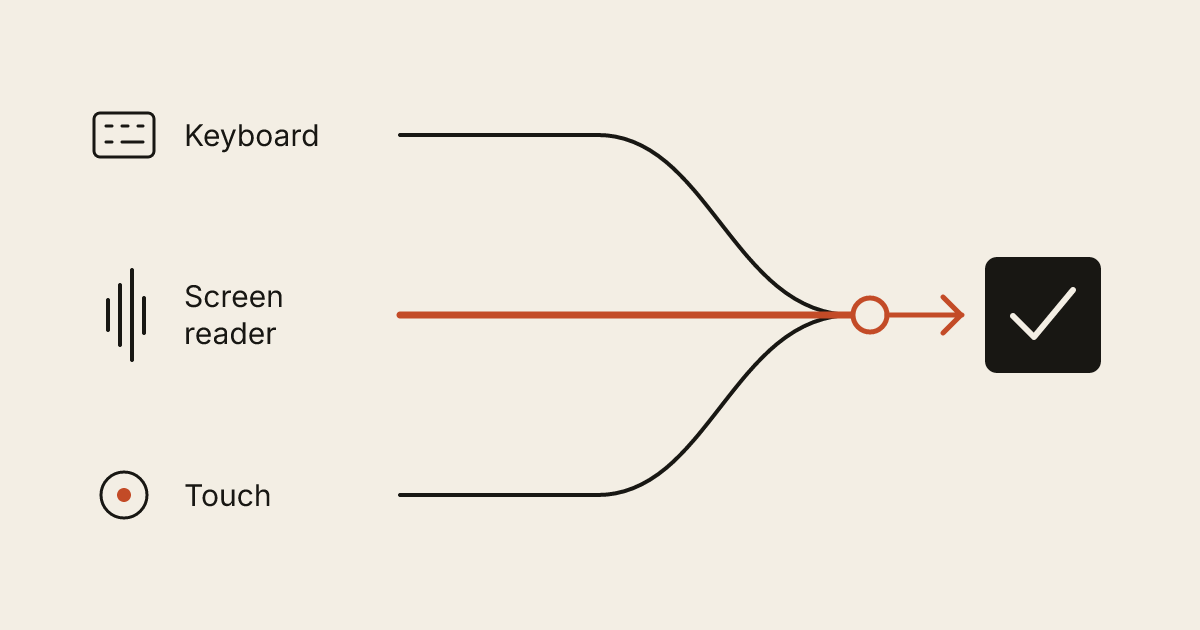
A customer should be able to find your services, understand the price or next step, and contact you using the tools that work for them. That may mean a keyboard, a screen reader, enlarged text, or a phone held close to their face. Website accessibility makes those everyday tasks possible for more people.
For a small business, the most useful starting point is a real customer journey. Choose something specific: request an estimate, find opening hours, or book an appointment. Follow it through the whole site, including any outside scheduling tool. A readable homepage cannot compensate for a booking calendar someone cannot operate.
Start with a task and a short record
In a hypothetical example, a neighborhood repair shop wants visitors to request appliance service. The journey includes choosing an appliance, entering a ZIP code, describing the problem, and receiving confirmation. Write those steps down before testing. Include the mobile menu and any notices that appear along the way.
For each problem, record the page, the action attempted, what happened, and what should happen instead. “The contact page is inaccessible” leaves too much to interpret. “Using the keyboard, I cannot reach the appliance selector” gives a developer something to investigate and retest.
These checks are a starting point. W3C's Easy Checks guidance explains that a page can pass basic checks and still contain significant barriers. A fuller evaluation needs a defined scope and appropriate expertise; a quick checklist does not establish legal compliance or certify a website.
Follow the journey without a mouse
Use Tab to move forward through interactive controls and Shift+Tab to move backward. There should be a visible indicator showing your position. Links, buttons, forms, menus, and dialogs should appear in a sensible sequence. Confirm your browser's keyboard-navigation setting if it initially skips controls.
Try activating links with Enter and buttons with Enter or Space. Use arrow keys where a control calls for them, such as a radio-button group. Open the navigation, choose a destination, and close any dialog. You should be able to leave each component without becoming trapped. W3C's keyboard interface guidance explains the behavior expected from common controls.
In our hypothetical repair-shop example, a calendar might look elegant but accept only mouse clicks. An accessible date selector or a clearly explained alternative within the request flow would be a concrete improvement. Simply adding a phone number elsewhere does not repair the blocked interaction.
Ask your developer to preserve familiar browser behavior. Custom controls need deliberate keyboard support; visual resemblance to a button is not enough.
Make forms understandable before and after submission
Every field needs a clear label that remains available while someone types. Placeholder text disappears and should not carry essential instructions alone. Mark required fields explicitly, and explain any necessary format before someone makes a mistake. W3C's form-label guidance describes how labels must also be connected to their controls in the page's code.
Keep the request proportionate. A first service inquiry may need contact details, location, and a short description; it probably does not need a complete customer profile. Remove questions that nobody uses to route or answer the inquiry.
Then test errors deliberately. Leave a required field empty and enter an incomplete email address. The page should identify the affected field, explain how to correct it, and preserve information already entered. A red outline alone is insufficient feedback. After a successful test submission, look for a clear confirmation that assistive technology can perceive. W3C's form-notification guidance covers both errors and successful completion.
Use an agreed test environment or coordinate live tests with the business. Label test inquiries so they do not become unexplained work orders.
Check contrast where decisions happen
Read the smallest useful text: form instructions, prices, opening hours, navigation labels, and error messages. Test text over photographs in the actual mobile crop, too. A heading can be clear on one part of an image and disappear over another.
WCAG's AA text-contrast criterion generally calls for at least 4.5:1 for ordinary text and 3:1 for large text. Large text means at least 18 points, or 14 points when bold; exceptions include logos and incidental content. Use a contrast checker instead of guessing from brightness. The W3C explanation of text contrast gives the definitions and exceptions.
Keep practical information out of faint decorative styling. In a hypothetical landscaping quote form, “Required” and “We serve these ZIP codes” deserve the same reading comfort as the main question.
Explain what useful images contribute
Give images text alternatives based on their purpose. A meaningful project photograph needs a description that conveys its relevant information. An image acting as a button needs an accessible name explaining its action. Purely decorative images should have empty alternatives so screen readers can skip them; repeating nearby text adds unnecessary noise. W3C's image decision tree helps distinguish these cases. Ask your developer to check the implementation as well as the wording.
Enlarge the page and keep using it
Increase browser zoom gradually to 200%. Read the page and complete the same task. Look for clipped text, overlapping labels, buttons hidden beneath sticky headers, and notices that fill the screen. W3C's text-resizing guidance calls for text enlargement up to 200% without losing content or functionality.
Also check the layout at an effective width of 320 CSS pixels. One way to reach that is a 1280-CSS-pixel browser viewport at 400% zoom. Ordinary vertically flowing content should remain readable without scrolling sideways as well as down; certain content, such as complex tables and maps, has exceptions. See W3C's reflow guidance.
The practical question is whether someone can still understand the offer and finish the form after enlarging the text. A compact desktop composition may need to become a simple vertical sequence.
Give visitors control over movement
Try the site with your device's reduced-motion preference enabled. Decorative movement should settle into a useful static presentation, with all content and actions still available. W3C documents respecting reduced-motion preferences as a technique for preventing nonessential interaction-triggered animation.
Separately, check moving banners and automatically rotating content. WCAG calls for a way to pause, stop, or hide nonessential movement that starts automatically, lasts more than five seconds, and appears alongside other content. Automatically updating information has its own control requirement without that five-second exception. The pause, stop, hide guidance explains the distinction.
A hypothetical photographer's portfolio can retain its character through composition and imagery while letting visitors advance a gallery themselves. Important service descriptions should remain available for as long as someone needs to read them.
Turn the findings into maintained improvements
Prioritize obstacles that prevent a task: an unreachable button, an unusable calendar, or an error nobody can find. Then address repeated reading and navigation problems. Assign each issue an owner and record how the corrected behavior was checked.
Include outside tools in that review. Ask a booking provider specific questions about the problems you observed, rather than accepting a broad accessibility claim. Repeat the customer journey when you change the menu, replace a form, or introduce a new widget.
At Webq Pro, human direction and review remain part of development, including work assisted by AI. Accessibility decisions require attention to how people actually use the result. If you want help improving a particular journey, send us the page and the task your customer needs to complete. That gives us a concrete place to begin.